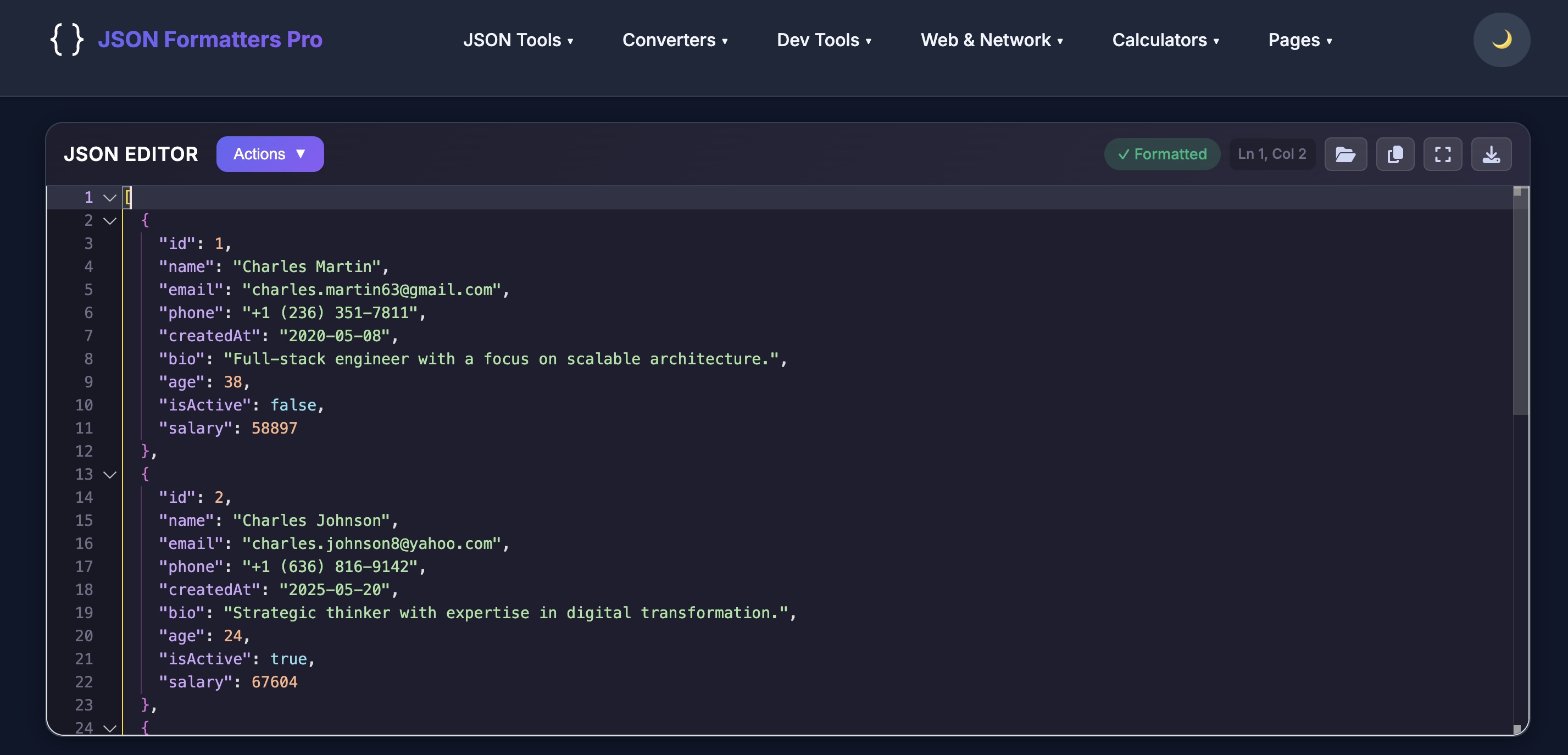
In the world of modern web development, JSON (JavaScript Object Notation) has become the universal language for data exchange. Whether you're building REST APIs, configuring applications, or working with NoSQL databases, you'll encounter JSON daily. Today, we're excited to introduce our new JSON Editor powered by the same Monaco Editor that drives Visual Studio Code, bringing professional-grade editing capabilities directly to your browser.
🚀 Why We Built This JSON Editor
As developers ourselves, we've spent countless hours working with JSON data. From debugging API responses to editing configuration files, from transforming data structures to validating schemas JSON is everywhere. Yet, most online JSON tools felt... inadequate. They lacked the sophistication we'd come to expect from our IDEs.
That's when we asked ourselves: What if we could bring the VS Code editing experience to a specialized JSON tool? The result is our new JSON Editor, built on Monaco Editor the same core technology that powers Visual Studio Code, one of the world's most popular code editors.
💎 The Power of Monaco Editor
Monaco Editor is an open-source code editor developed by Microsoft. It's the same editor that powers VS Code, Azure DevOps, and many other Microsoft products. By leveraging Monaco, our JSON Editor inherits years of engineering excellence and battle-tested features.
What Makes Monaco Special?
- Intelligent Code Understanding: Monaco doesn't just display text it understands the structure of your code. For JSON, this means proper parsing, validation, and intelligent suggestions.
- Performance at Scale: Monaco handles large files efficiently, using techniques like virtualized rendering to maintain smooth performance even with megabytes of JSON data.
- Familiar Interface: If you've used VS Code, you'll feel right at home. Same keyboard shortcuts, same look and feel, same professional experience.
- Accessibility: Monaco is built with accessibility in mind, supporting screen readers and keyboard navigation.
✨ Key Features of Our JSON Editor
1. Real-Time Syntax Validation
One of the most frustrating aspects of working with JSON is debugging syntax errors. A missing comma, an unclosed bracket, or an unescaped quote can break your entire data structure. Our editor catches these errors as you type.
{
  "name": "John Doe",
  "age": 30,
  "email": "john@example.com"
  "active": true
}
The editor highlights the exact location of syntax errors with clear, descriptive messages. No more hunting through hundreds of lines to find that one missing character.
2. Beautiful Syntax Highlighting
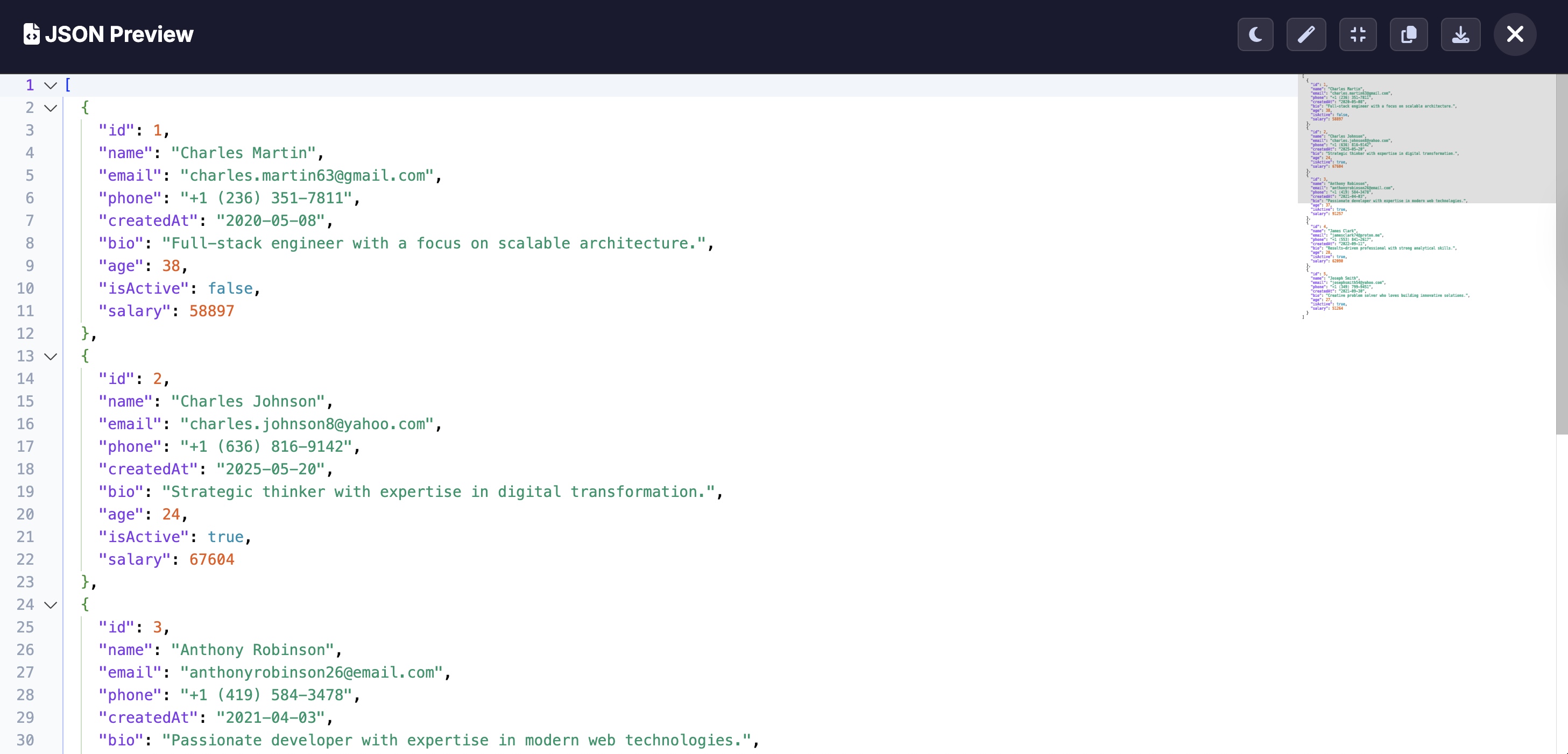
Our JSON Editor uses sophisticated syntax highlighting to make your data structure instantly readable. Different elements are color-coded for quick identification:
- Keys Orange/red for easy identification of property names
- Strings Green for string values
- Numbers Orange for numeric values
- Booleans Cyan for true/false values
- Null Purple for null values
- Brackets & Braces Matching pairs are highlighted when your cursor is nearby
{
  "user": {
    "id": 12345,
    "username": "developer",
    "email": "dev@example.com",
    "isActive": true,
    "lastLogin": null,
    "roles": ["admin", "editor", "viewer"],
    "metadata": {
      "createdAt": "2024-01-15T10:30:00Z",
      "updatedAt": "2024-12-13T08:00:00Z"
    }
  }
}
3. Light and Dark Themes
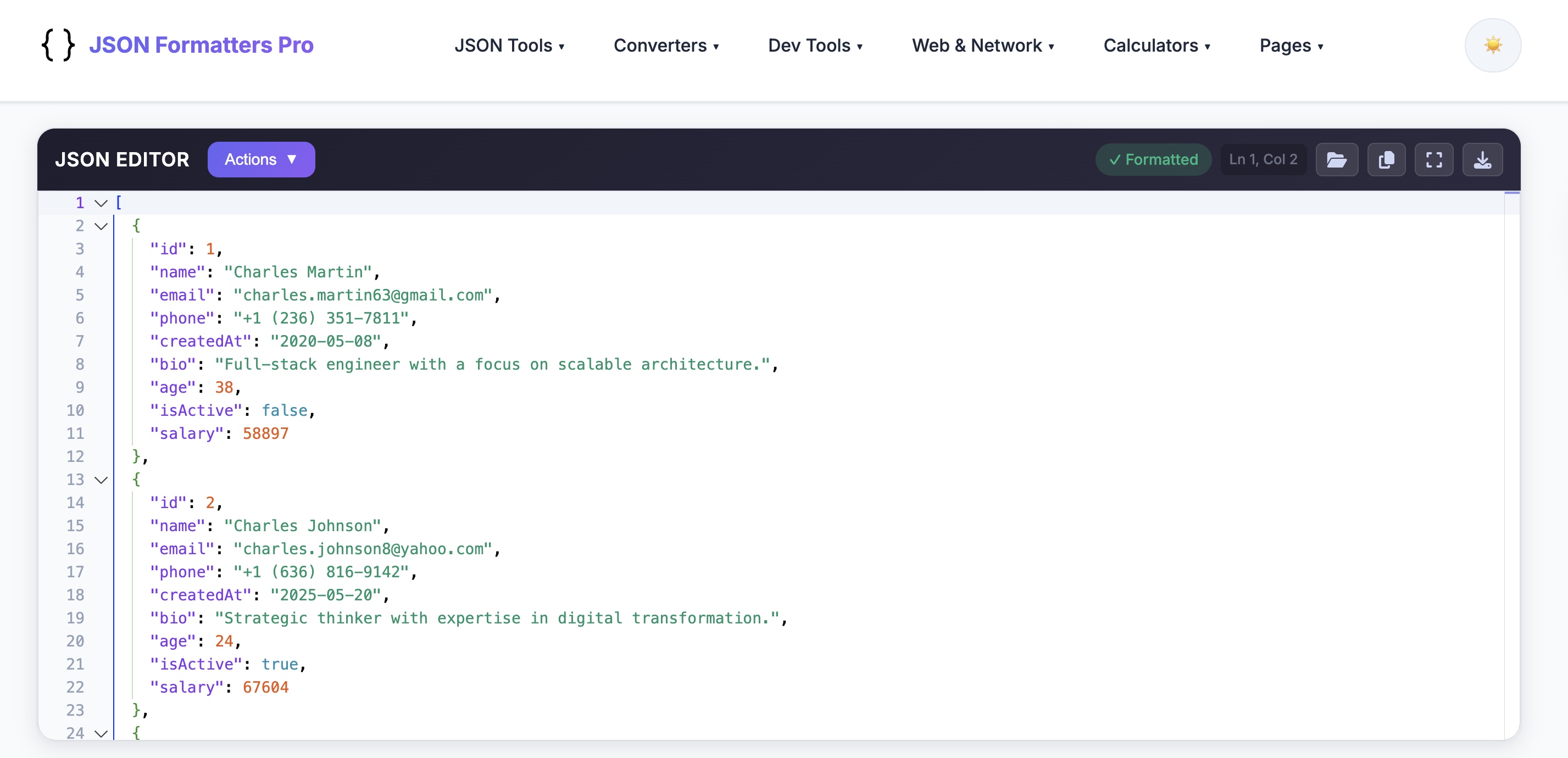
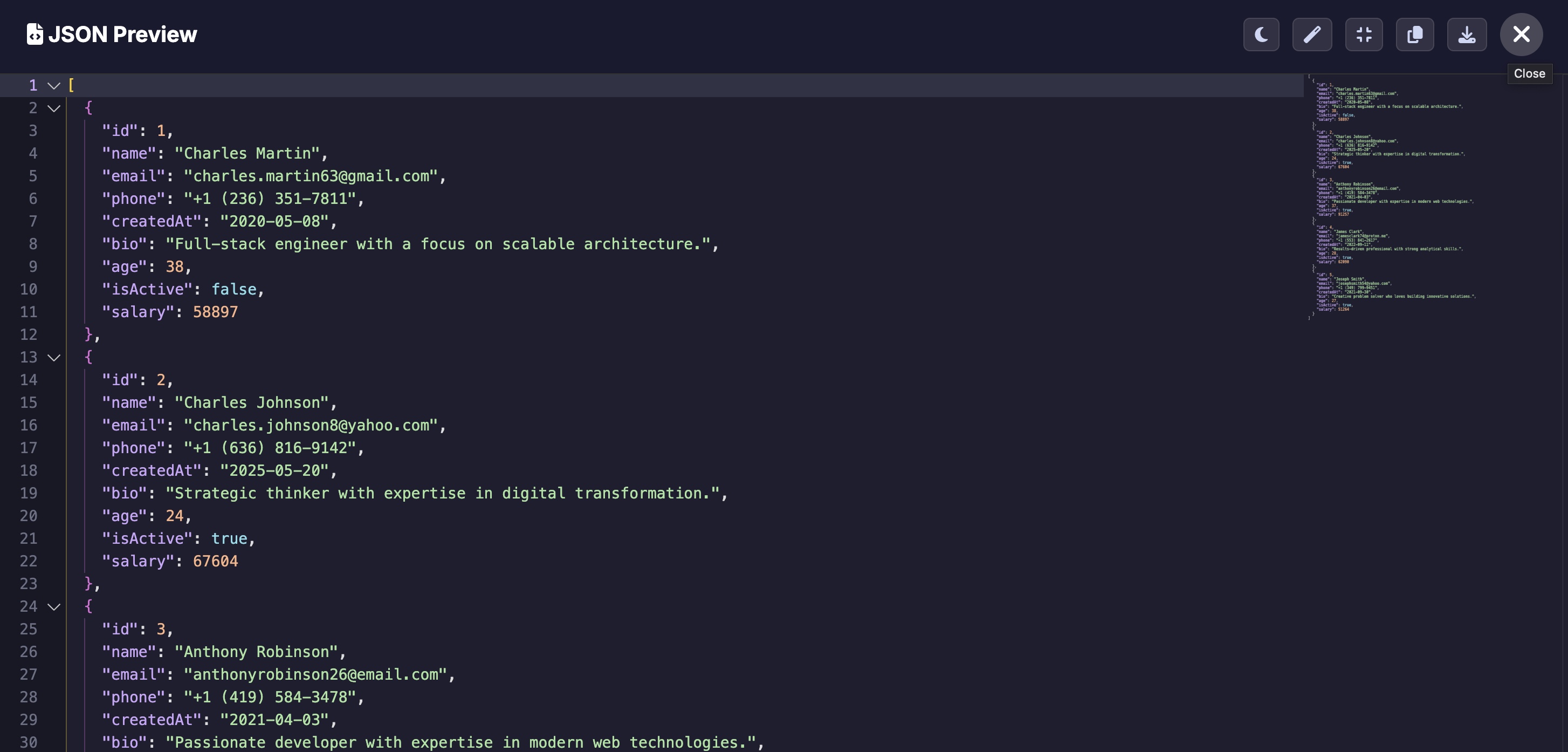
Whether you prefer coding in a bright environment or late-night dark mode sessions, our editor adapts to your preference. The theme automatically syncs with your system settings, or you can manually toggle between light and dark modes.
4. Code Folding
Working with large JSON files? Our editor supports code folding, allowing you to collapse and expand sections of your JSON. This is incredibly useful when navigating complex nested structures.
{
  "company": {
    "name": "Tech Corp",
    "employees": [▾ ... 500 items ... ],
    "departments": [▾ ... 25 items ... ],
    "locations": {
      "headquarters": "New York",
      "offices": [▾ ... 12 items ... ]
    }
  }
}
5. Search and Replace
Need to find a specific key or replace values across your JSON? Use the familiar Ctrl+F (or Cmd+F on Mac) to search, and Ctrl+H for find-and-replace. The search supports regular expressions for advanced pattern matching.
6. Format and Minify
Transform your JSON with a single click:
- Format/Beautify: Turn minified JSON into readable, properly indented code
- Minify/Compress: Remove all whitespace for production use
Before (minified):
{"name":"Alice","age":28,"city":"London","hobbies":["reading","coding","travel"]}After (formatted):
{
  "name": "Alice",
  "age": 28,
  "city": "London",
  "hobbies": [
    "reading",
    "coding",
    "travel"
  ]
}
7. Tree View Navigation
Beyond the code editor, we provide a visual tree view of your JSON structure. This hierarchical representation makes it easy to understand complex nested data at a glance. Click on any node to jump directly to its location in the editor.
🔧 Common JSON Use Cases
API Development and Testing
When building REST APIs, you're constantly working with JSON request and response bodies. Our editor helps you:
- Validate API responses for correct structure
- Format responses for debugging
- Create request payloads with proper syntax
- Compare expected vs actual responses
{
  "status": "success",
  "code": 200,
  "data": {
    "users": [
      {
        "id": 1,
        "name": "John Doe",
        "email": "john@api.com",
        "created_at": "2024-01-10T14:30:00Z"
      },
      {
        "id": 2,
        "name": "Jane Smith",
        "email": "jane@api.com",
        "created_at": "2024-02-15T09:45:00Z"
      }
    ],
    "pagination": {
      "current_page": 1,
      "total_pages": 10,
      "per_page": 20,
      "total_items": 195
    }
  },
  "meta": {
    "request_id": "abc123",
    "response_time_ms": 45
  }
}
Configuration File Editing
Modern applications use JSON for configuration extensively. From package.json in Node.js projects to tsconfig.json for TypeScript, our editor makes configuration management a breeze.
{
  "name": "my-awesome-app",
  "version": "2.1.0",
  "description": "A fantastic web application",
  "main": "dist/index.js",
  "scripts": {
    "start": "node dist/index.js",
    "dev": "nodemon src/index.ts",
    "build": "tsc",
    "test": "jest",
    "lint": "eslint src/**/*.ts"
  },
  "dependencies": {
    "express": "^4.18.2",
    "mongoose": "^8.0.0",
    "dotenv": "^16.3.1"
  },
  "devDependencies": {
    "typescript": "^5.3.0",
    "@types/node": "^20.10.0",
    "jest": "^29.7.0"
  },
  "engines": {
    "node": ">=18.0.0"
  }
}
Data Transformation
Need to convert data between formats? Our editor supports JSON to XML, JSON to YAML, and JSON to CSV conversion, making data transformation seamless.
Database Operations
Working with MongoDB, CouchDB, or other document databases? Our editor helps you craft queries and manipulate documents with confidence.
{
  "$match": {
    "status": "active",
    "age": { "$gte": 18, "$lte": 65 },
    "country": { "$in": ["USA", "Canada", "UK"] }
  }
}


[
  { "$match": { "status": "active" } },
  { "$group": {
      "_id": "$category",
      "count": { "$sum": 1 },
      "avgPrice": { "$avg": "$price" }
    }
  },
  { "$sort": { "count": -1 } },
  { "$limit": 10 }
]
🛡️ Privacy and Security
We understand that JSON data often contains sensitive information. That's why our editor operates 100% client-side. Here's what this means for you:
- No Data Upload: Your JSON never leaves your browser. All processing happens locally.
- No Server Storage: We don't store, log, or analyze your data in any way.
- Works Offline: Once loaded, the editor works without an internet connection.
- No Account Required: Use the tool anonymously no signup, no tracking.
This makes our editor safe for working with API keys, passwords, personal data, and other sensitive information. Your data stays on your machine, period.
⌨️ Keyboard Shortcuts
Boost your productivity with these keyboard shortcuts (same as VS Code):
| Action | Windows/Linux | Mac |
|---|---|---|
| Find | Ctrl + F | ⌘ + F |
| Find & Replace | Ctrl + H | ⌘ + Option + F |
| Format Document | Shift + Alt + F | ⇧ + Option + F |
| Go to Line | Ctrl + G | ⌘ + G |
| Toggle Comment | Ctrl + / | ⌘ + / |
| Fold All | Ctrl + K, Ctrl + 0 | ⌘ + K, ⌘ + 0 |
| Unfold All | Ctrl + K, Ctrl + J | ⌘ + K, ⌘ + J |
| Select All | Ctrl + A | ⌘ + A |
| Undo | Ctrl + Z | ⌘ + Z |
| Redo | Ctrl + Y | ⌘ + ⇧ + Z |
📱 Responsive Design
Our JSON Editor isn't just for desktop. The interface is fully responsive, working seamlessly on tablets and even mobile devices. While we recommend a larger screen for intensive editing, you can quickly validate or view JSON on any device.
🌐 Browser Compatibility
The editor works on all modern browsers:
- ✅ Google Chrome (recommended)
- ✅ Mozilla Firefox
- ✅ Microsoft Edge
- ✅ Safari
- ✅ Opera
- ✅ Brave
💡 Tips for Working with JSON
1. Always Validate Before Sending
Before making API requests or saving configuration files, always validate your JSON. A single syntax error can cause application failures or unexpected behavior.
2. Use Consistent Formatting
Maintain consistent indentation (2 or 4 spaces) throughout your project. Our format button standardizes indentation automatically.
3. Leverage Tree View for Complex Data
When dealing with deeply nested structures, switch to tree view to get a bird's-eye view of your data hierarchy.
4. Minify for Production
Before deploying JSON data in production environments, minify it to reduce file size and improve load times.
{
  "name": "Product",
  "price": 29.99,
  "inStock": true
}


{"name":"Product","price":29.99,"inStock":true}
5. Comment Your Config Files
While standard JSON doesn't support comments, many tools accept JSONC (JSON with Comments). Our editor handles both formats.
🔄 JSON vs Other Data Formats
JSON vs XML
JSON has largely replaced XML for web APIs due to its simplicity and smaller payload size. Compare:
XML:
<user>
  <name>John Doe</name>
  <age>30</age>
  <email>john@example.com</email>
</user>
JSON (40% smaller):
{
  "name": "John Doe",
  "age": 30,
  "email": "john@example.com"
}
JSON vs YAML
YAML is popular for configuration files due to its human-readable syntax. JSON is preferred for APIs and data interchange. Our editor can convert between both formats.
🚀 Getting Started
Ready to try our JSON Editor? Here's how to get started:
- Visit the Editor: Navigate to JSON Editor
- Paste Your JSON: Paste your JSON data into the editor, or type from scratch
- Edit with Confidence: Use real-time validation to ensure your JSON is correct
- Format or Minify: Use the toolbar buttons to transform your JSON
- Copy or Download: Get your edited JSON ready for use
No installation, no signup, no hassle. Just powerful JSON editing in your browser.
📊 Performance Benchmarks
We've optimized our editor for performance. Here's how it handles large files:
- 10 KB JSON: Instant loading and parsing
- 100 KB JSON: Sub-second loading
- 1 MB JSON: 2-3 seconds to fully parse
- 10 MB JSON: Handled efficiently with virtualized rendering
Monaco's architecture ensures smooth scrolling and editing even with massive files.
🔮 Future Roadmap
We're constantly improving our JSON Editor. Here's what's coming:
- 📋 JSON Schema Validation: Validate JSON against custom schemas
- 🔀 JSON Diff Tool: Compare two JSON documents side by side
- 📤 File Import/Export: Drag-and-drop file support
- ⚡ Snippets: Quick insertion of common JSON patterns
- 🔗 Share Links: Generate shareable links for your JSON
🤝 Community and Support
We love hearing from our users! If you have suggestions, found a bug, or just want to say hello:
- 📧 Email us at contact@jsonformatterspro.com
- 🐦 Follow us on Twitter for updates
- 💬 Leave feedback via our contact form
🏆 Conclusion
Working with JSON doesn't have to be painful. Our Monaco-powered JSON Editor brings the sophistication of VS Code to your browser, offering real-time validation, beautiful syntax highlighting, code folding, and much more all while keeping your data private and secure.
Whether you're a seasoned developer debugging complex API responses or a beginner learning about data structures, our editor is designed to make your JSON workflow smoother and more efficient.
📚 Related Tools You Might Like
- JSON Tree Viewer Visualize JSON as an interactive tree
- JSON Schema Validator Validate JSON against schemas
- JSON Diff Tool Compare two JSON documents
- JSON to YAML Converter Convert between formats
- Base64 Encoder/Decoder Encode and decode Base64 data